

Overview
Find answers by topic and follow each feature link for the full workflow. Check your account for the limits and controls available to you.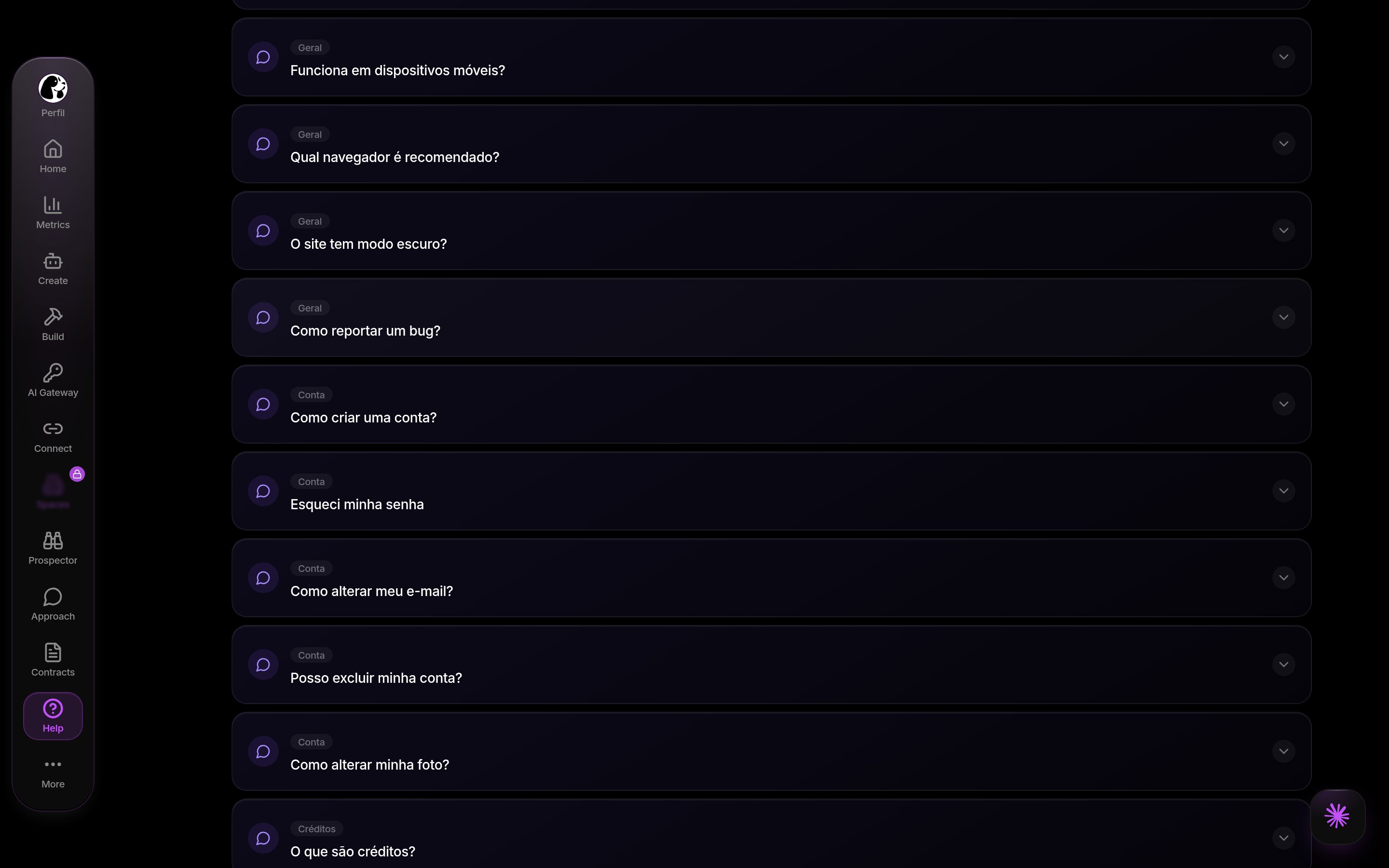
FAQ in DoglyTdc
Who this is for
- People getting started with DoglyTdc.
- Users with questions about access, usage, and collaboration.
How to use
Open a question and follow its link to the feature guide.Account and security
Where should I start?
Where should I start?
Where do I change my preferences?
Where do I change my preferences?
Does the PIN replace my password?
Does the PIN replace my password?
Can I sign out a specific device?
Can I sign out a specific device?
Does requesting deletion erase my account immediately?
Does requesting deletion erase my account immediately?
AI and credits
Does every AI message cost the same?
Does every AI message cost the same?
Do all models have the same effort controls?
Do all models have the same effort controls?
Does sharing a conversation let others edit the original?
Does sharing a conversation let others edit the original?
Where do I check my balance?
Where do I check my balance?
Do purchased credits expire?
Do purchased credits expire?
Collaboration and creation
Where do I find my workspaces?
Where do I find my workspaces?
Can I explore public workspaces?
Can I explore public workspaces?
Does joining a workspace make me an administrator?
Does joining a workspace make me an administrator?
What are badges?
What are badges?
Mobile and notifications
Are the PWA and native app the same installation?
Are the PWA and native app the same installation?
Does biometrics work in every browser?
Does biometrics work in every browser?
Does enabling a category guarantee push notifications?
Does enabling a category guarantee push notifications?
Support
How do I report a problem?
How do I report a problem?
How many attachments can I send?
How many attachments can I send?
Does a created ticket guarantee all attachments and a response deadline?
Does a created ticket guarantee all attachments and a response deadline?