

Summary
Team collaboration takes place within a workspace. The email invitation flow searches for an existing DoglyTdc account. It does not automatically create accounts for external people.Who it is for
- People bringing collaborators into a workspace.
- Users who received a membership invitation.
- Members who need to understand the scope of shared access.
How to open
1
Sign in
Access DoglyTdc with your personal account.
2
Open the workspace
Select the correct team environment.
3
Open member management
Use the team or members area and its email invitation option, when available.
Screens and features
Teams in DoglyTdc
Workspace context
Members belong to a specific environment. Joining one workspace does not mean joining every environment owned by its creator. Check the workspace name before sending a request. Available controls depend on permissions in that environment.Email search
The field accepts a valid email address. The search checks accounts that already exist in DoglyTdc. Results may show a name, nickname, and partially masked address. Check the person’s identity before continuing.1
Enter the email
Use the address associated with the invited person’s account.
2
Find the account
Wait for the search result.
If no account appears, verify the address and whether the account exists.
3
Send the invitation
Select the person found and confirm sending.
Pending invitation
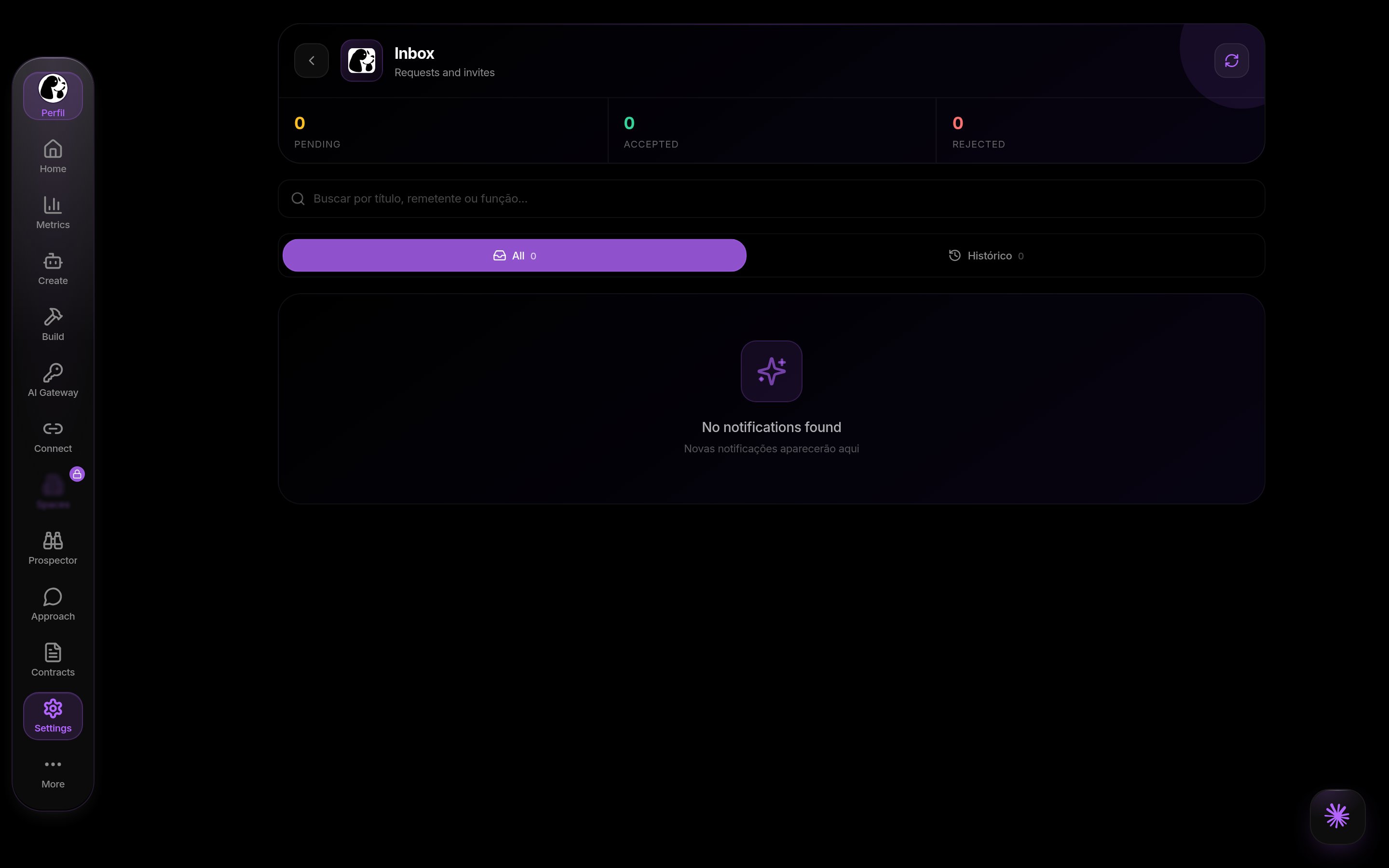
Sending creates a request for the recipient. The documented email invitation flow uses the DoglyTdc inbox. An address used for lookup does not guarantee delivery of an external email. A pending invitation is not accepted membership.Receiving an invitation
The invited person should sign in to their own account and review the invitation. The inbox includes workspace invitation notices. Check the environment and sender before accepting.Duplicate checks
The flow checks whether the person is already a member. It also checks pending invitations from the same sender for that workspace. These checks prevent repeating the same request in this flow.Limits
- Email invitations require an existing account.
- This dialog does not automatically create accounts.
- Invitations from this dialog request a viewer role.
- Roles and tools differ by collaboration environment.
Permissions
Only use invitation controls available to your role. Member management is not a personal account preference. A badge does not replace workspace authorization. Do not share credentials to give your team access.Common errors
Original interface messages are retained below.Frequently asked questions
Can I invite someone without an account?
Can I invite someone without an account?
This dialog’s search needs to find an existing account.
Does sending add the person immediately?
Does sending add the person immediately?
No. The flow creates a membership request.
Is the invitation necessarily delivered by email?
Is the invitation necessarily delivered by email?
The address identifies the account; this flow creates a product inbox notice.
Does access apply to all workspaces?
Does access apply to all workspaces?
No. The invitation is associated with the specified workspace.