

Summary
Doglytdc Payments brings together platform connections, credentials, and preferences. It is separate from Connect and from your DoglyTdc subscription status. Parts of this interface still use demonstration results.Who it is for
- People organizing payment platforms in the dashboard.
- People updating credentials or choosing a default platform.
- Anyone who needs to distinguish saved settings from a verified integration.
How to open
Open the platform payments area in the dashboard. The?tab=platform-payments entry opens payments:overview.
Internal screens use payments: followed by the screen identifier.
Screens and features
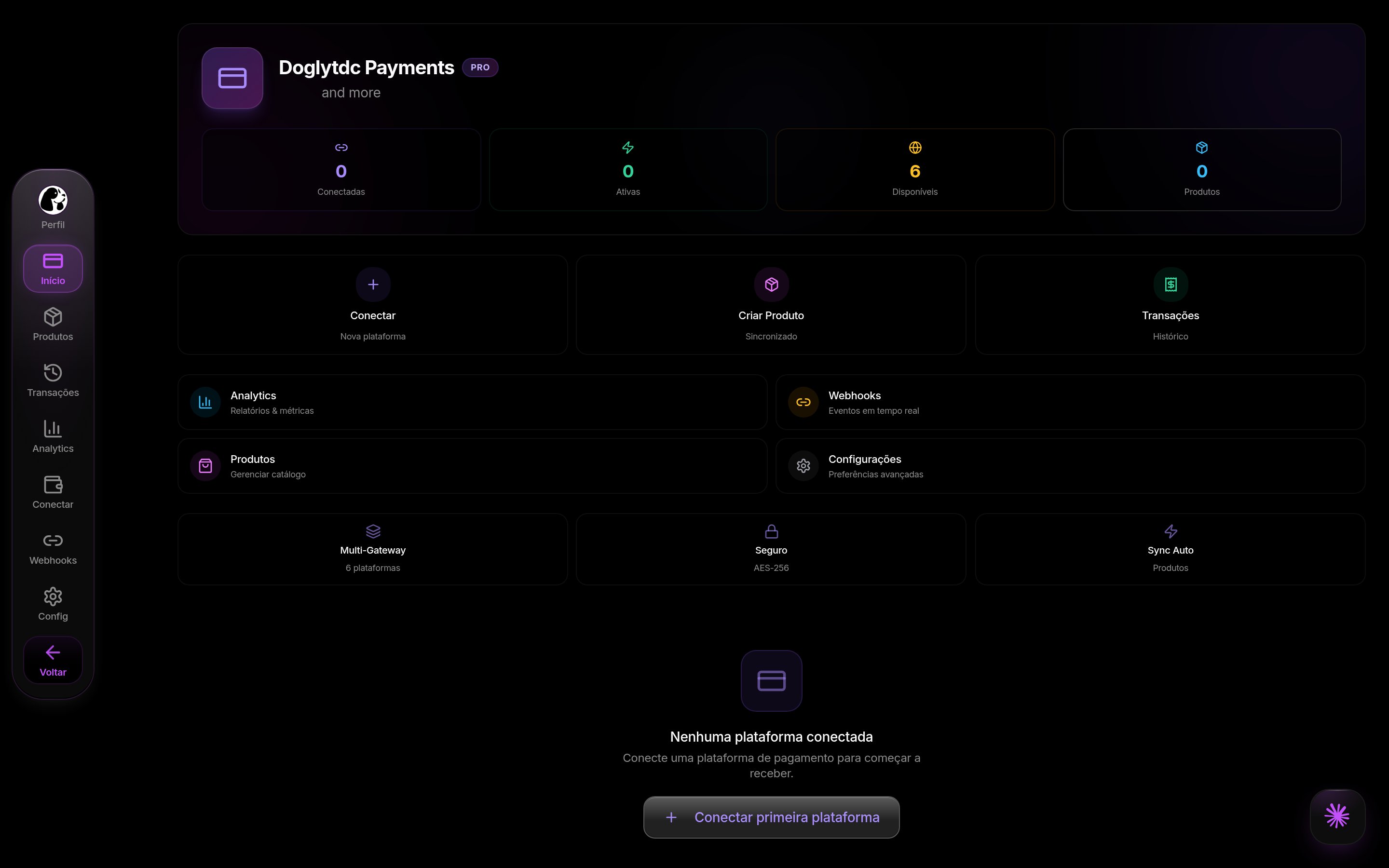
Platform payments in DoglyTdc
Overview
Inoverview, review connected, active, and available platforms.
You can enable or disable connections, choose a default, edit credentials, and disconnect.
The product counter is fixed at zero in this implementation.
Analytics
Inanalytics, the active platform count comes from saved connections.
Conversion, paid contracts, average order value, and revenue per platform use fixed zeros.
The chart is a placeholder; these values are not an actual financial report.
Connect
Inconnect, choose a listed platform and enter the requested credentials.
The form offers test mode where available for the selected platform.
Saving a connection does not prove the provider accepted its credentials.
1
Add the connection
Choose a platform and complete its required fields.
Check the selected mode before saving.
2
Review the settings
Check the active status, default platform, and saved credentials.
Treat the test only as a local check of required fields and formats.
3
Verify beyond the local test
Review the setup with the provider before relying on the connection.
Do not treat visual confirmation as proof of payment.
Products
Inproducts, open the creation form and enter a name, price, and other available options.
The flow simulates delays and per-platform results, including example identifiers.
It does not create real products with providers or populate a persistent catalog on this screen.
Settings
Insettings, notification and synchronization controls are available.
Notifications change only in the screen’s local state; this flow does not save those preferences.
Synchronization controls likewise do not establish that an automatic process is running.
Disconnecting all platforms requires confirmation.
Transactions
Intransactions, revenue and transaction totals are fixed at zero.
The screen displays an empty state without querying transaction history.
The search field is not connected to a real list in this implementation.
Webhooks
Inwebhooks, generate and copy the URL shown for each connection.
The generated URL can be saved in the connection settings.
The configured label indicates a saved URL, not confirmed event delivery.
Set up the provider too; copying the address does not complete that step.
Credits and limits
DoglyTdc credit balance and subscription status appear in separate payment components. Do not confuse that balance with customer revenue or the zeros in these reports. This connections area does not itself confirm a credit purchase or change your plan.Permissions
Managing connections requires an authenticated dashboard session. Enter credentials only in the appropriate fields and do not share them in documents. Check the platform before editing it or confirming a disconnection.Common errors
Frequently asked questions
Does the test confirm provider access?
Does the test confirm provider access?
No. It runs locally and does not contact the provider.
Do reports represent my receipts?
Do reports represent my receipts?
Not in this implementation. They contain fixed zeros and placeholders alongside real connection counts.
Does creating a product publish a real offer?
Does creating a product publish a real offer?
Not in this flow. Synchronization and its results are simulated.
See Connect for the specific Cakto and Kiwify features.