

Summary
Prospector brings together business searches, leads, and website projects. Choose a niche, location, and desired number of results. The available results may be fewer than requested.Who it is for
- Professionals looking for businesses to offer services to.
- Teams organizing leads before outreach.
- People using business information to start a website project.
How to open
Go to Dashboard › Prospector to open search. The main dashboard entry uses?tab=prospector. Use Prospector’s own navigation for its internal screens.
Screens and features
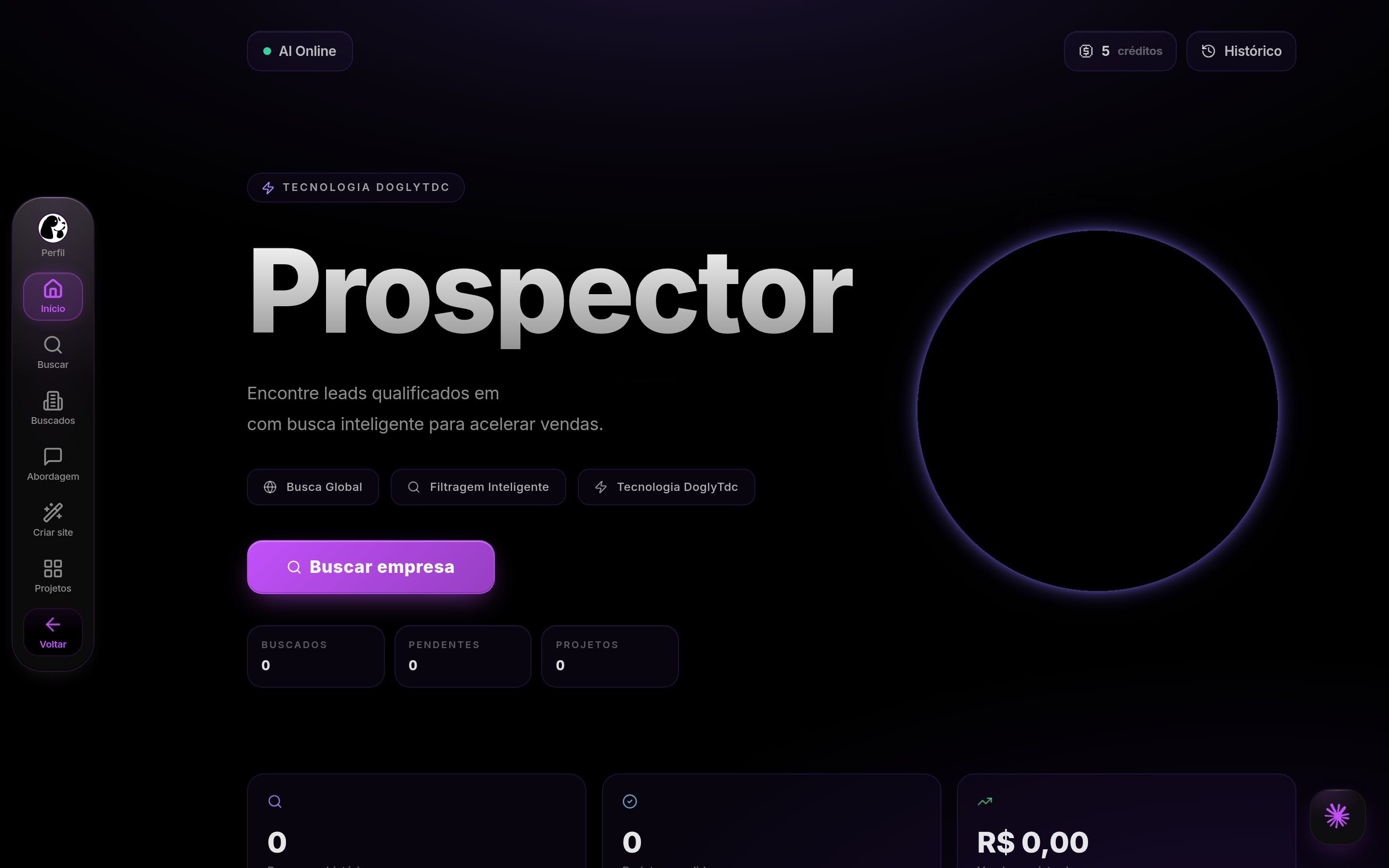
Prospector in DoglyTdc
Search
Set a niche and location before searching. Adjust the quantity and check the displayed cost. Filters help narrow the business profile. Advanced mode also affects the cost calculation.1
Define the search
Enter a niche and location. Review the quantity and filters before continuing.
2
Check credits
Review the displayed cost and balance after the search. Reduce the quantity if your balance is insufficient.
3
Review results
Wait for completion and check how many businesses were found. A partial completion does not mean every requested result exists.
Results and details
Open a business to examine the available information. Contact details and photos depend on the returned result. Do not assume every lead has WhatsApp or a website. Use the available information to choose your next contact.Leads
The leads screen organizes businesses already found. Review records before starting outreach. Shortcuts let you continue the sales workflow. A discovered lead is not yet a converted customer.History
Load previous searches to consult their results. The interface indicates when no history is available. Removing a search from history is different from running another search. Reloading history does not discover new businesses.Projects and website creation
Projects and website creation screens continue the work on a business. Review business information before creating a website. The public website has its own presentation. Finding a lead does not automatically publish a website for it.Export and outreach
Export lets you move results into another workflow. Review exported information before using it. Use personalized outreach to prepare your contact. Copying a message does not prove that it was sent.Credits and limits
Search cost varies with quantity and advanced mode. Check the displayed amount before confirming. Where applicable, validation uses the workspace balance. Search charging takes place after results during service processing. Check the completion cost, especially for partial results. Do not infer the final charge solely from the original requested quantity.Permissions
Use your signed-in session to access dashboard features. Do not assume personal and workspace balances are interchangeable. Availability depends on the context in which the tool was opened. Handle contact information carefully when exporting or sharing it.Common errors
Messages below retain their original Portuguese wording for recognition.Frequently asked questions
Will I receive exactly the requested quantity?
Will I receive exactly the requested quantity?
No. Search may return fewer businesses, including none. Check the delivered count and completion message.
Does every lead have WhatsApp?
Does every lead have WhatsApp?
No. When that contact is unavailable, you can copy the message and use another available channel.
Does history run a new search?
Does history run a new search?
Loading history retrieves previous results. Configure a new search to look for additional businesses.
Does finding a business create a contract?
Does finding a business create a contract?
No. Outreach and contract creation are separate steps. Review the information before moving to those tools.