

Summary
Build Studio combines natural-language requests, project files, and a preview. Work on a project, inspect its history, and publish a version of the site. The environment opens atbuild.doglytdc.dev.
Editing, restoring, and publishing are separate operations.
Restoring a version does not automatically update the published site.
Who it is for
- People building interfaces from instructions.
- People checking changes before publication.
- People recovering an earlier project version.
- People making incremental changes with a history.
How to open
Go to Dashboard › Build Studio, using?tab=build.
The dashboard forwards you to the Build environment.
The application also recognizes the dedicated /build route.
Opening the editor does not make every change public.
Use the publishing control to make a version available.
Screens and features
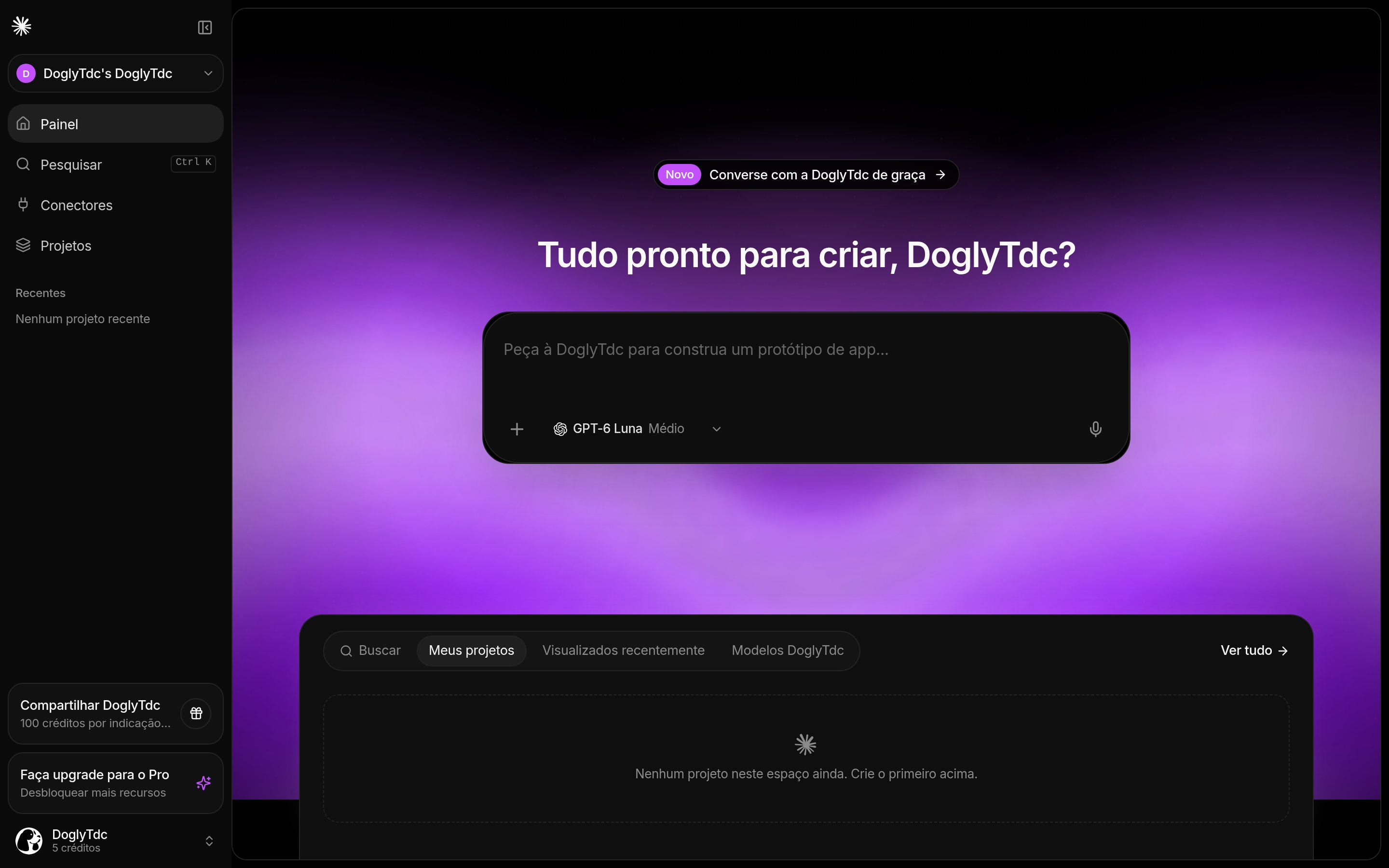
Build Studio in DoglyTdc
Projects
The project screen organizes your Build projects. Open the correct project before requesting a change. Account synchronization can fail independently of local editing.Building conversation
Requests describe the change you want to make. Planning and building modes represent different intentions. Choose the model and effort before submitting.1
Open the project
Select the project to change.
Check its files and current preview.
2
Configure the request
Select the available model, effort, and mode.
Describe a change that you can verify.
3
Submit and follow progress
The request captures the selected model and effort when submitted.
Changing those controls later does not reconfigure the existing task.
4
Review the preview
Check the result before requesting another change.
Publish separately when you want to update the public site.
Files and preview
Files represent the working state of the project. The preview lets you inspect the interface before publication. It is not necessarily the active public version. Focused requests make changes easier to review. For example, change navigation before combining several unrelated updates. Check important flows after generation.Version history
History lets you inspect versions and restore earlier files. Restoring records a new change in history. You still need to review the resulting state.1
Choose a version
Open history and inspect the version you want.
Make sure it contains the state you need to recover.
2
Restore
Select Restore to apply the files to the working state.
Wait for the version to load.
3
Review and publish if needed
Inspect the restored preview.
Publish or update separately to change the public site.
Publishing
The publishing control distinguishes first publication from an update. When the working files differ from the public version, it can offer an update. The interface also reports publishing or updating in progress. Publishing has its own outcome and error messages. Do not assume publication finished just because generation finished. Check the status and address displayed in the interface.Appearance and navigation
The environment includes appearance and sidebar controls. They organize the editing experience. They do not replace a request to change the site’s files.Credits and limits
Build displays the account balance and receives task usage information. The screen does not establish one fixed price for every project. Model, effort, and work performed should not be treated as a flat fee. Model and effort are captured for each request. Later selector changes apply to later requests. Do not assume restoration, publication, or other stages are free without checking the applicable information.Permissions
Use your account to synchronize and access your projects. Access to a published site is different from access to the editor. Sharing a public address does not invite someone to edit the project.Common errors
These are actual Portuguese interface messages, retained for recognition.Frequently asked questions
Does restoring also publish?
Does restoring also publish?
No. Restoration changes the working state; publication or updating is separate.
Does changing effort affect a running task?
Does changing effort affect a running task?
No. The model and effort are captured when the request is created.
Is the preview already my public site?
Is the preview already my public site?
No. Check publication status and the address provided after publishing.