

Summary
Outreach helps you prepare business messages and track conversations. It brings together creation, channels, history, and settings. Generating a message does not deliver it to the recipient.Who it is for
- People preparing personalized sales outreach.
- Professionals organizing business conversations.
- Teams that need context before replying.
How to open
Go to Dashboard › Outreach. The entry uses?tab=approach.
Internal screens use values such as ?tab=approach:channels.
To start creating outreach, open ?tab=approach:create.
Screens and features
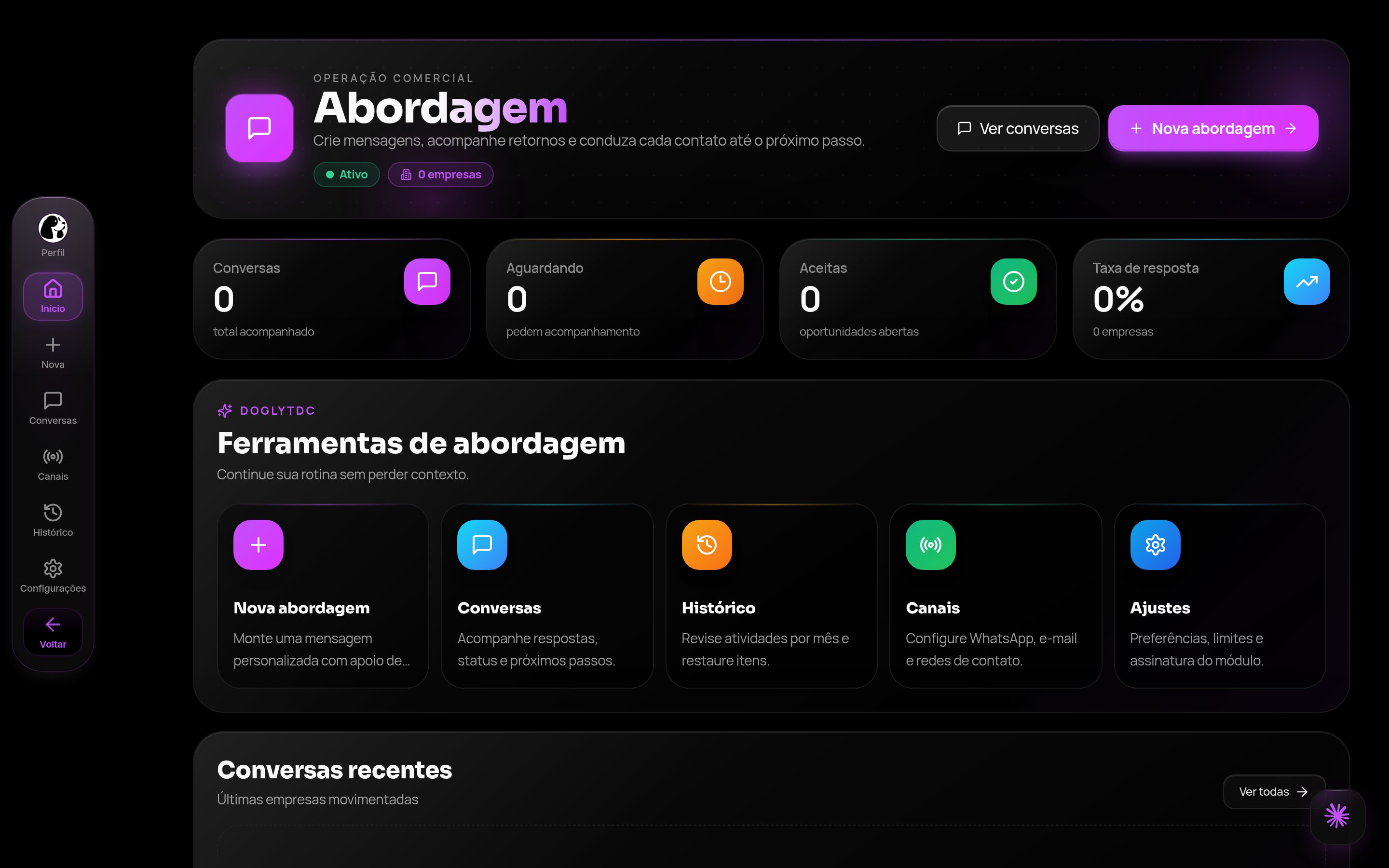
Outreach in DoglyTdc
Dashboard
Thedashboard screen is the area’s starting point.
Use shortcuts to create outreach or consult conversations.
Indicators help you navigate previously recorded work.
A configured channel is not proof of message delivery.
Channels
Usechannels to organize contact channels.
Review the configuration before using a channel in a conversation.
Saving only records the configuration you entered.
A save confirmation does not confirm external delivery.
Conversations
Useconversations to find and open conversations.
Status filters help locate the conversation you need.
The detail screen brings messages and business context together.
Check the recipient before preparing a reply.
Create
Usecreate to prepare new outreach.
A business name is required to generate a message.
Review the text before copying it or using it in a channel.
1
Enter the business
Provide its name and available context.
Avoid starting generation with incomplete information.
2
Generate the message
Check your credits and request generation.
Wait for confirmation before continuing.
3
Review and track
Adapt the text to the actual business context.
Track the conversation without treating generated text as delivered text.
History
Usehistory to consult previous outreach.
Recover context and avoid repeated contacts.
A previous record does not guarantee a recipient response.
Check the conversation status before continuing.
Settings
Usesettings to adjust outreach preferences.
Save changes to record the configuration.
The success message refers to saving those preferences.
It does not confirm a sending operation.
Suggested replies
Enter the received reply before requesting a suggestion. The tool uses that content to prepare the next message. Review the suggestion before sharing it. Do not treat generated suggestions as actual customer responses.Credits and limits
Outreach generation costs 1 credit unless applicable unlimited access is available. Reply generation also checks a 1-credit cost. Review the balance and access condition shown in the tool. An insufficient balance prevents generation. Saving preferences is not the same as generating a message.Permissions
Use an authenticated session to work in the dashboard. The tool checks whether unlimited access applies. Do not assume every account has that access. Share conversation information only with authorized people.Common errors
Messages retain their original Portuguese wording for recognition.Frequently asked questions
Does saving a channel send a message?
Does saving a channel send a message?
No. Saving does not prove sending or receipt.
Verify the operation and conversation progress separately.
Does generating a message start contact?
Does generating a message start contact?
Generation prepares the text.
Review it and check which channel is used for contact.
Can I request a suggested reply?
Can I request a suggested reply?
Yes. Enter the received content first.
Check credits before generating the suggestion.