

Overview
Slides brings together presentation creation, templates, editing, and hosting. The AI assistant turns a description into an editable presentation. You can also start with a template and review the result manually.Who it is for
- People preparing product and service presentations.
- People organizing visual content.
- People sharing a presentation through a link.
- People using PDFs or images as AI references.
How to open
Go to Dashboard › Slides to open the presentation tool. The dashboard entry uses?tab=slides. Internal views may use the slides: prefix.
Screens and features
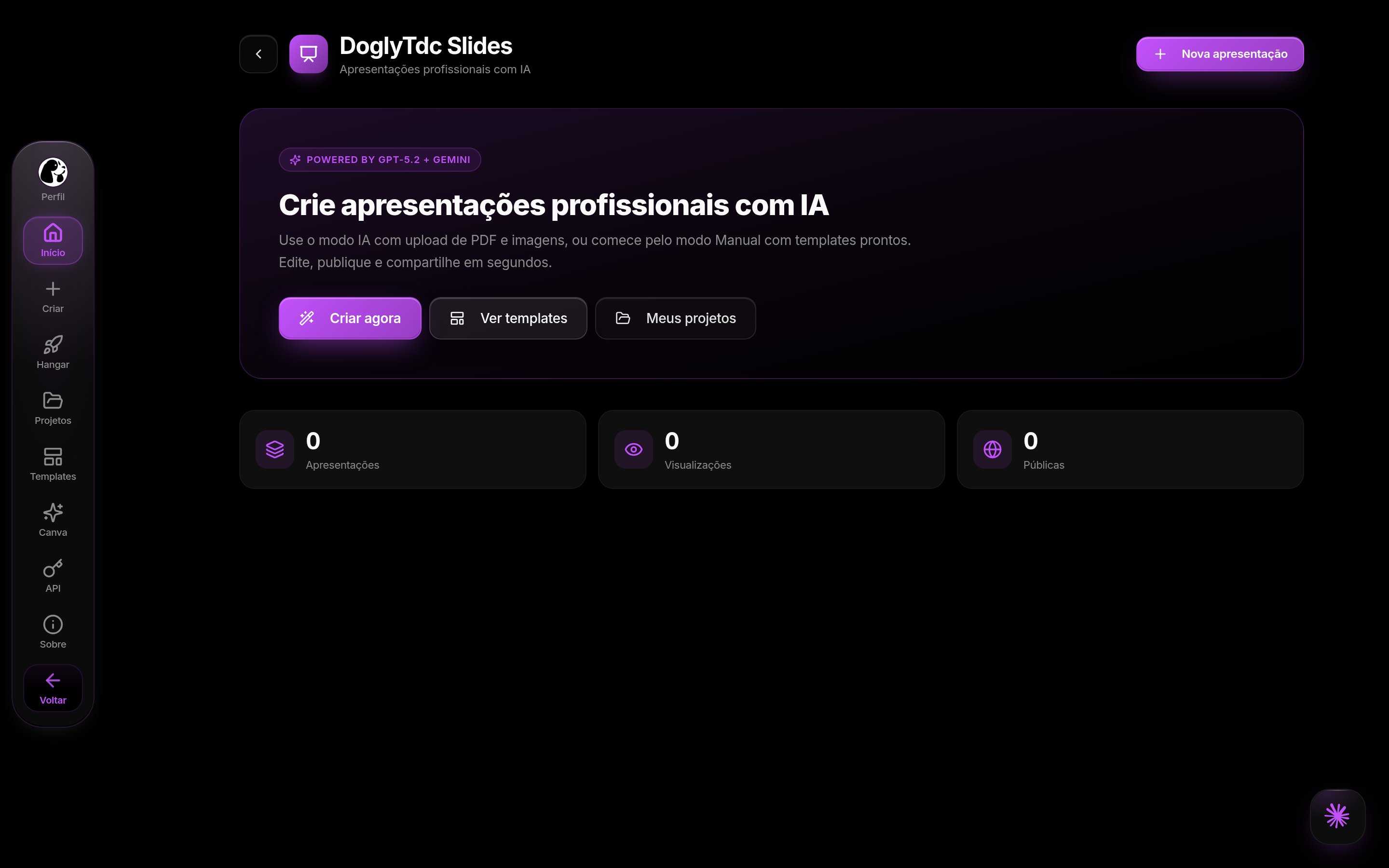
Slides in DoglyTdc
Home and library
The library shows presentations associated with your account. You can create a presentation or start from a template. Open an item to continue in the editor. A presentation link can be copied when available.AI assistant
The assistant takes a description of the content you want. It also offers slide count, theme, and attachment options.1
Describe the presentation
Include the topic, audience, and goal. The description must contain at least 8 characters.
2
Set the structure
Choose 4, 6, 8, 10, 12, 15, or 20 slides. Select a theme offered on the screen.
3
Add references
Select PDFs or images if needed. Wait for attachments to finish processing before generating.
4
Generate and review
Generate the presentation and open it in the editor. Check facts and organization before presenting.
Editor
The editor organizes slides and visual properties. You can adjust content and appearance. There is also an AI option to update an individual slide. Review the updated slide before using the final material.Presentation and PDF
Presentation mode lets you navigate through slides. PDF export is separate from hosting. Wait for export confirmation before looking for the file.Hosting
The hosting area offers publication through a link. An external presentation can also be registered with a title, link, and name. Removing hosting is different from editing presentation content. Check the link destination before sharing it.Credits and limits
- No DoglyTdc credit debit was identified in this flow.
- This is not a promise of unlimited use or continuous availability.
- The assistant offers the slide counts listed above.
- Each file selection takes up to 8 attachments.
- Each file can be up to 25 MB.
- This assistant accepts PDFs and images.
- Attachments still processing temporarily prevent generation.
The limit of 8 applies to a file selection in the assistant. It should not be read as an account-wide storage allowance.
Permissions
The editing library requires an authenticated account. The shared viewer is separate from the editor. Having a viewing link does not grant editing access. Only publish material you have permission to share.Common errors
Messages below retain their original interface wording.Frequently asked questions
Do I have to use AI?
Do I have to use AI?
No. The library also provides templates to start a presentation.
Can I use a PDF as reference?
Can I use a PDF as reference?
Yes. The assistant accepts PDFs within the per-file size limit.
Does PDF export publish the presentation?
Does PDF export publish the presentation?
No. Export and hosting are separate actions.
Is AI output ready to publish?
Is AI output ready to publish?
Review the content, facts, and visual presentation before sharing.